SolutionsWindows Server monitoring
Windows Server monitoring without a heavy agent.
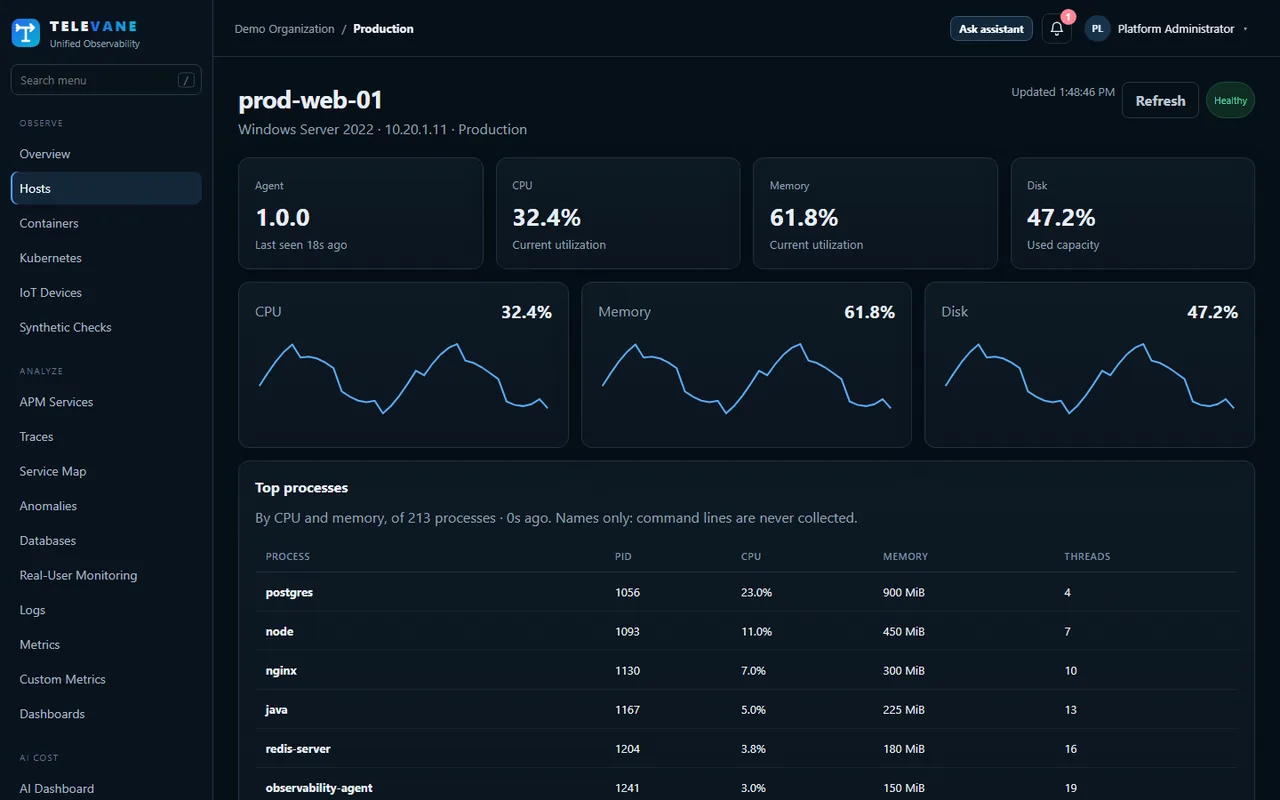
Install the Televane agent on Windows Server with one PowerShell command and see CPU, memory, disk, network, the busiest processes and Event Log errors for every server, with alerts before users notice.
What to monitor on Windows Server
Windows Server problems usually show up first in a handful of numbers: CPU and the processes behind it, available memory, free disk space and disk latency, and errors in the Event Log. Watching them continuously, with history and alerts, turns a 2 a.m. outage into a warning the afternoon before.
Built-in tools such as Performance Monitor work for one server at a time. Televane collects the same signals from every Windows and Linux server into one view, charges for data rather than per server, and keeps the agent light enough for busy production machines.
What you see for every Windows server
Every 15 seconds by default, in one place for the whole fleet.
- CPU, memory, disk and network throughput
- The busiest processes by CPU and memory (names only, never command lines)
- Windows Event Log errors and warnings, and log files such as IIS logs, with secrets masked on the server
- Windows Server 2016, 2019, 2022 and 2025, and Windows 10/11
Safe to roll out on production servers
Built to be the program on the server you never have to worry about.
- A read-only pre-check reports whether the server has room for the agent before anything is installed
- Hard CPU and memory limits enforced by Windows, at below-normal priority
- Outbound HTTPS only: no listening ports and no inbound firewall rules
- One-command install with a checksum check, and a one-command removal that leaves the server as it was
Alerts for Windows servers
Start from ready-made templates.
- Host not reporting, CPU saturated, memory high and disk filling
- Alerts on Event Log lines that match, such as service crashes
- Email, Slack, Microsoft Teams, PagerDuty and webhooks, with on-call schedules
Get started in three steps
- Create a free account — Sign up at portal.televane.com. The Free plan needs no card, and new organizations can try Pro free for 14 days.
- Check, then install the agent — Run the read-only pre-check on the server, then copy the install command from Add data: PowerShell on Windows, a shell on Linux.
- Watch the data arrive — The server appears within a minute or two. Turn on ready-made alert templates for the problems you care about.
Works together with
Windows Server monitoring: common questions
Which Windows versions are supported?
Windows Server 2016, 2019, 2022 and 2025, and Windows 10 and 11, on x64.
How much does the agent use on the server?
It is capped by Windows itself: at most about one CPU core and 128 MB of memory on the standard profile, and less on the light profile, at below-normal priority.
Do I need to open firewall ports?
No. The agent connects out over HTTPS (port 443) and opens no listening ports.
Is there a fee per Windows server?
No. Televane charges for the data you send each month, whatever the number of servers.
Can I remove the agent completely?
Yes. The portal shows a one-command removal that deletes the service, its files and its settings, and you can then remove the server from your host list.
Try it on your own systems
Create a free account, install the agent with one command and see your data in minutes. 14-day Pro trial, no card needed.
Start free